Auto
Keyboard
Presser
Sorry for the inconvenience — our site is fully operational now!




A free automation tool that simulates keyboard presses. After downloading it, you can easily simulate single keys, combination keys, such as Enter, Spacebar, Backspace, Arrow keys, F1–F12, or functional keys.
The AutoPress software contains a lot of useful features. All these features
make it one of the best tools to perform work efficiently.
The Auto presser tool has a simple and intuitive design. It is easy to understand, so that even beginners and advanced tech enthusiasts can use this tool.
You can control automation according to your needs. With this software, you can set how many times any one specific key is pressed and also decide the delay time between different key presses.
You can also save multiple key press sequences in this tool. This makes repetitive workflows simple and intuitive, as you can recall and use any specific task whenever you need.
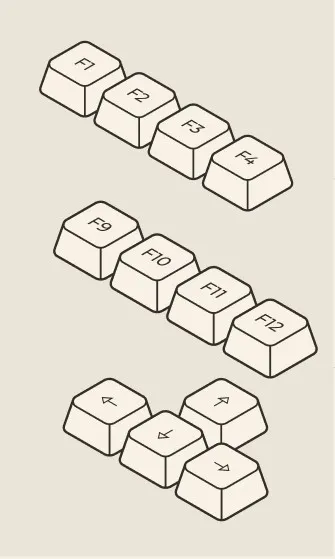
By using this automation tool, you can simulate single keys, combination keys, and functional keys for repetitive tasks. So, it is helpful to save your time and effort.
You can also assign a hotkey for specific tasks. By setting hotkeys, you can start and stop automation tasks instantly by using your preferred keyboard shortcuts. So, you don't need to navigate to the menu every time.
Another exciting feature of the Auto key presser is that it allows you to choose the speed of clicking every key. So, you can decide for how long any one key will be pressed and released. This feature is ideal for precise automation in games or software tasks.
Most of the games or office jobs require performing repetitive tasks on keyboards. Like in farming games or data entry or form-filling jobs, we need to do the same task again and again. This can be irritating as they waste valuable time and reduce productivity.
But in the digital world, you can use smart automation tools to simplify such tasks. So, you should download the Auto Keyboard Pressor software. This powerful tool is designed to automate keyboard tasks, so that you can make your work easier.
It makes repetitive task performance easy by setting some functions. Like, with this tool, you can control the delay, repetition, and duration of each key press. You can easily set repetitive keys in the tool and reduce your workload, and save extra time. You can also customize key presses, hotkey control, speed adjustment, and other options to get the maximum benefits.

Version 1.9 | 1.2 MB | Free
 Window 7,8,10,11
No installation required
The process to download and install the Auto Keyboard presser is simple and easy for everyone. For your help, these simple steps are mentioned below:
You should open your browser and search for the
"Auto Keyboard presser."
Now, open our official website and click on the
"Download Free" button and save the setup file to your PC.
Now, go to the downloaded files folder and double-click
on the file to start the installation process.
Next, choose your preferred installation location,
accept the terms, and click "Install."
After the app is installed, you should open it.
Lastly, set your desired key presses, repetition, delay, and hotkeys
to start automating tasks immediately.
This tool is designed with a simple interface and settings, so that every person can easily set automation keys to make work smooth. Here are quick steps to use the presser automation tool:
You should open the Auto Key presser after downloading
and installing it.
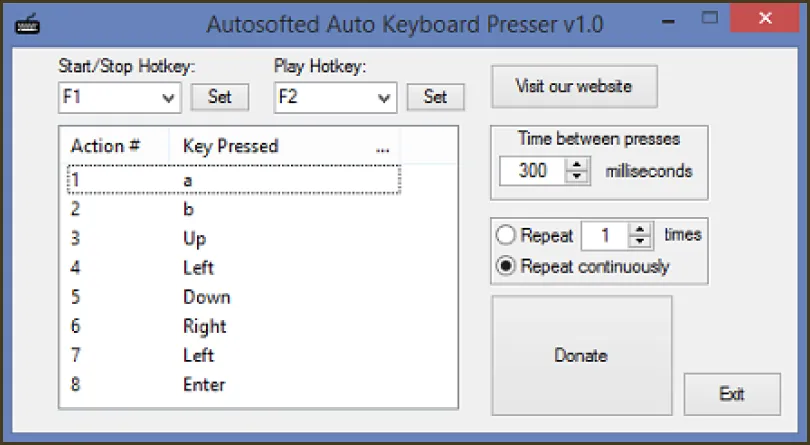
The next step is to set the Play hotkey which is what key should be
pressed to activate the auto key presser. You will also find the same
F1-F12 and 0-9 and Space keys included in the dropdown box. Click
the Select button when you have selected the key from the dropdown box.
There are many ways in which you can set the time between each
key press. The minimum time you can set for each key press is 10
milliseconds.
The key selection for either starting or stopping the recording allows
you to select anything from F1 to F12 as well as the numeric keypads
0-9 and space. Once you have selected the key, you can click Set.
This will allow you to record the keys you press, and you will be able
to see them in the Action column along with the
numbers and the keys in the Key Pressed column.
There are two possibilities for repetition: you can choose to repeat
the recordings a number of times, or you can choose to repeat the
recordings continuously.
Components
Requirements
© 2026. All rights reserved.